

WordPress is a flexible platform that supports a wide range of themes, plugins, file formats, and additional software. However, when attempting to upload these resources, you may occasionally encounter the WordPress memory limit error.
Fortunately, there are ways to resolve this error. By increasing the PHP memory available on your WordPress website, you can continue to add content and grow your site without any issues.
In this post, we’ll share four ways to increase the WordPress memory limit to solve any errors that you’re experiencing on your site:
- Edit wp-config.php and increase wp_memory_limit
- Change your server settings via PHP.ini
- Edit your .htaccess file
If you’re interested to learn why this problem occurs, you’ll find an explanation at the end of this post. Let’s get started!
How to increase WordPress memory limit
Below, we’ll feature four different methods you can try to increase the WordPress memory limit.
Unfortunately, we can’t guarantee that all of these solutions will work for you because it depends in large part on how your hosting environment is configured. That’s why we shared four different methods – at least one of these should work for your situation.
How to increase WordPress memory limit
In order to increase WordPress memory limit follow these steps:
1.Edit wp-config.php and increase wp_memory_limit
Go to cPanel > Files section > File manager menu:

2. Navigate to the root folder of your domain (by default, it is public_html for the main domain and addondomain.tld for the addon domains). Select wp-config.php file and click Edit:

Add the following code right before the /* That’s all, stop editing! Happy blogging. */’ line:
define( ‘WP_MEMORY_LIMIT’, ‘256M’);
where 256 is the memory limit you want to set:

NOTE: it is also possible to change WP_MEMORY_LIMIT by going to wp-includes folder of the installation and editing default-constants.php file.
2. Change your server settings via PHP.ini
You may also be able to lift the memory limit by editing your PHP.ini file. This file sets the default configuration for any application that requires PHP.
Every time someone visits your WordPress site, PHP runs on your server. During this process, the PHP programming language looks to the PHP.ini file for instructions. This includes setting your current WordPress memory limit.
If your host uses cPanel, you may be able to edit the PHP.ini configuration via cPanel. Typically, this tool is called something like MultiPHP Manager, MultiPHP INI Editor, or PHP Config. Not all hosts give you this ability, though.
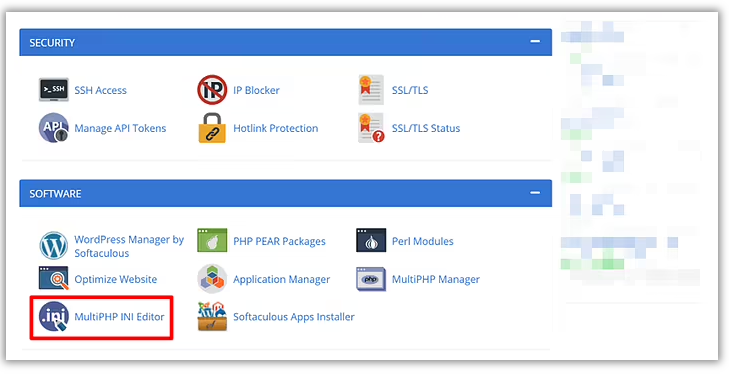
Once you open this tool, you can adjust the memory limit:

If your host doesn’t offer an in-dashboard PHP.ini editor, you also might be able to edit the PHP.ini file via FTP.
Once you’re connected, navigate to the root directory in the FileZilla window and locate the file.
Open the file and look for a line that includes memory limit=. You can now increase this value and save your changes.
Before these changes can come into effect, you’ll need to restart your server. Once your server is back up and running, you should no longer encounter the WordPress memory limit error.
3. Edit your .htaccess file
The .htaccess file is an important configuration file if your web host uses Apache (which many hosts do). This file controls a lot of your site’s configuration, including its memory limit.
You can use .htaccess to relay instructions to your server, without having to edit your server configuration files. This makes .htaccess a good alternative if you can’t access your PHP.ini file.
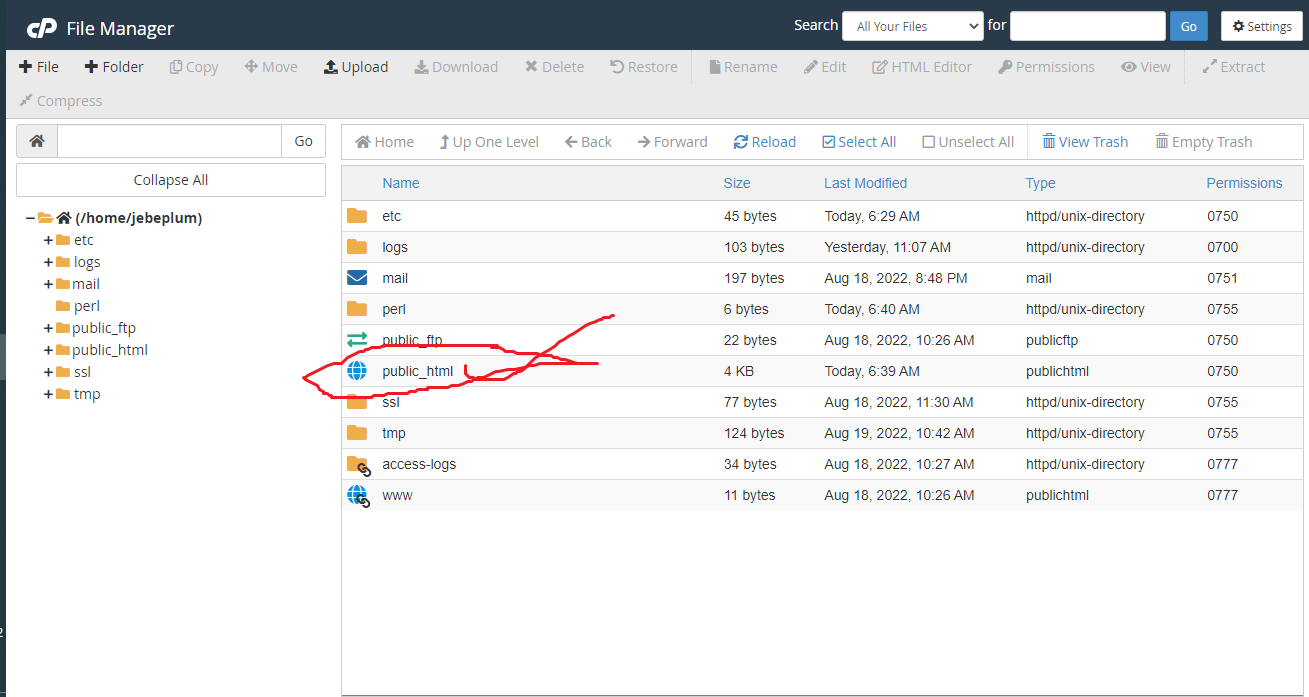
To access this file, from the cpanel file manage, locate public .html then open it.
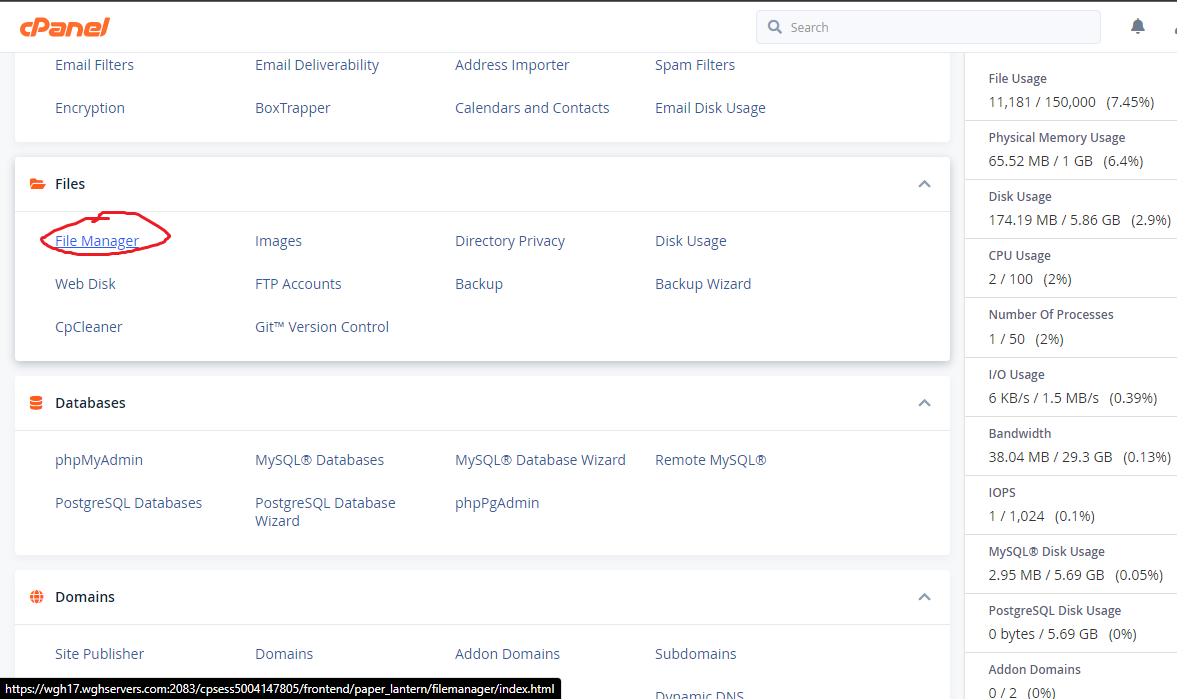
open public.html
from the file explorer some hosting enable hidden file to display while others you have to display the hidden file in the setting so you can see the .htaccess file
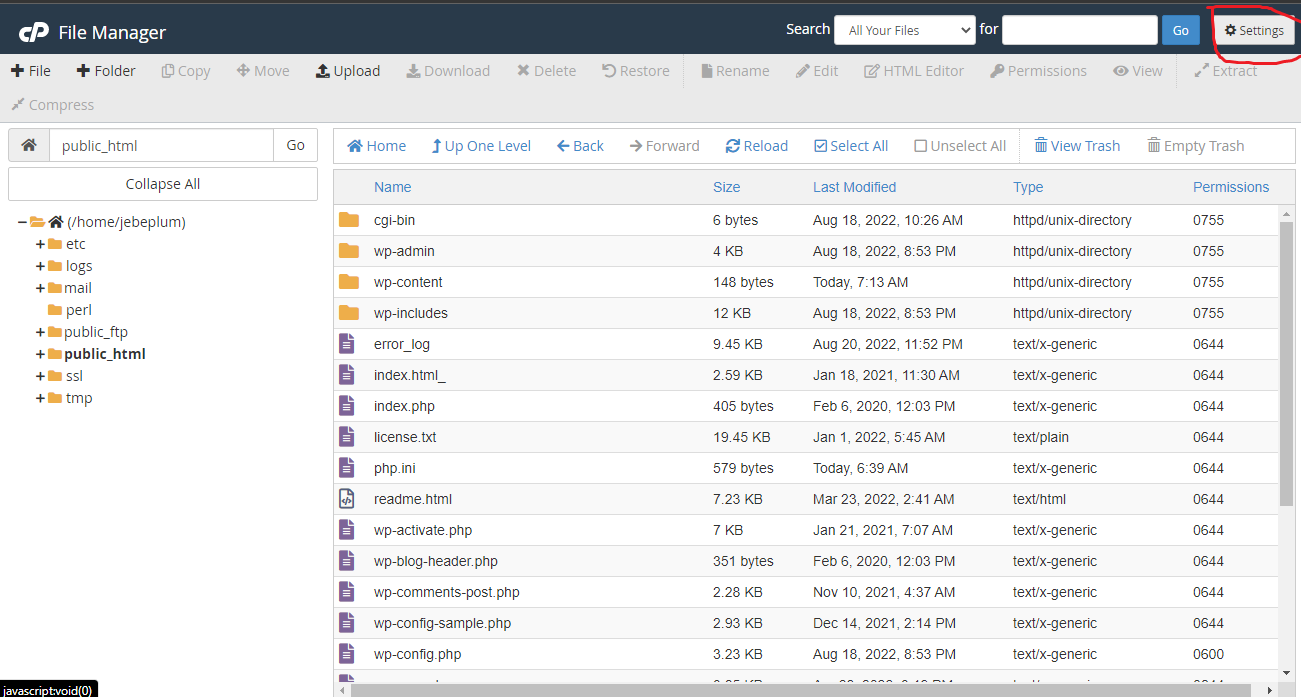
select display hidden files.

then the .httaccess file should be listed , right click on it then click edit.
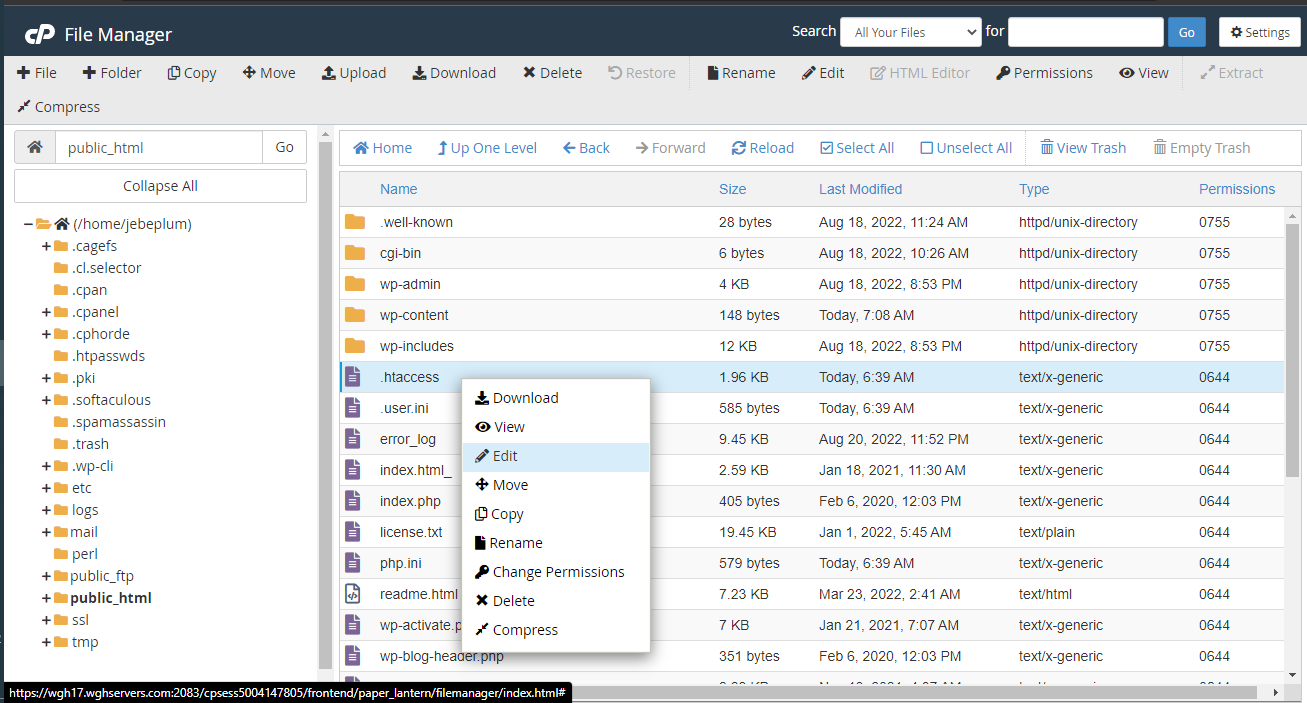
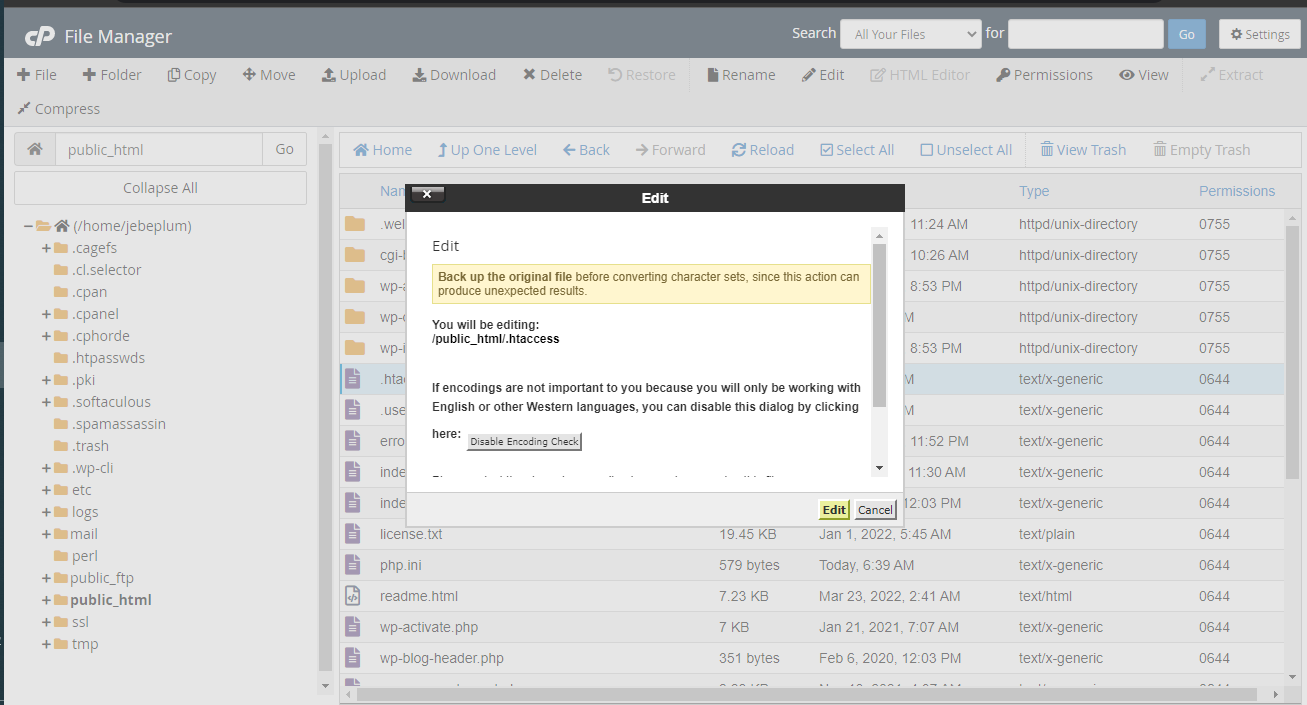
this will open the code edit consent screen that ask you will be editing the .htaccess, click edit.
this will open the code editor.
Now, open this file and add the following code snippet below the # END WordPress line:
php_value memory_limit 256M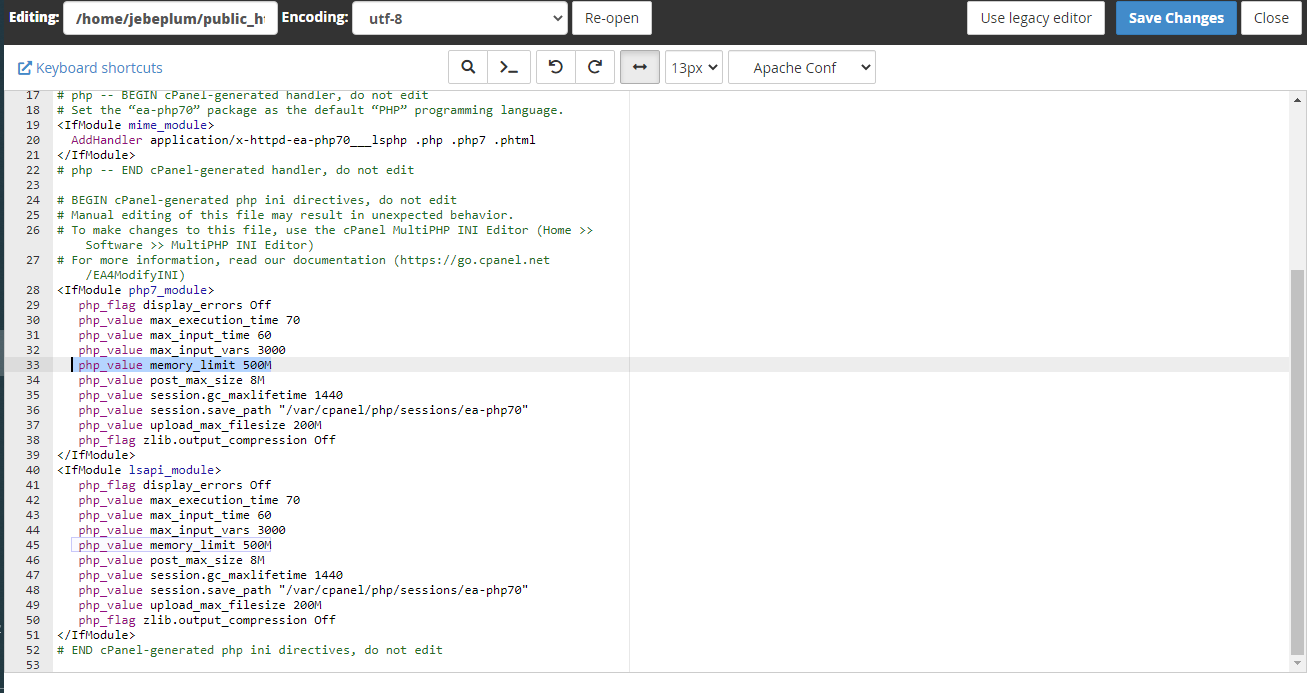
make sure you save changes after the editing.
Recent Comments